
Cinematic Teal Blue Edit
AI prompt for ChatGPT ·
About this prompt
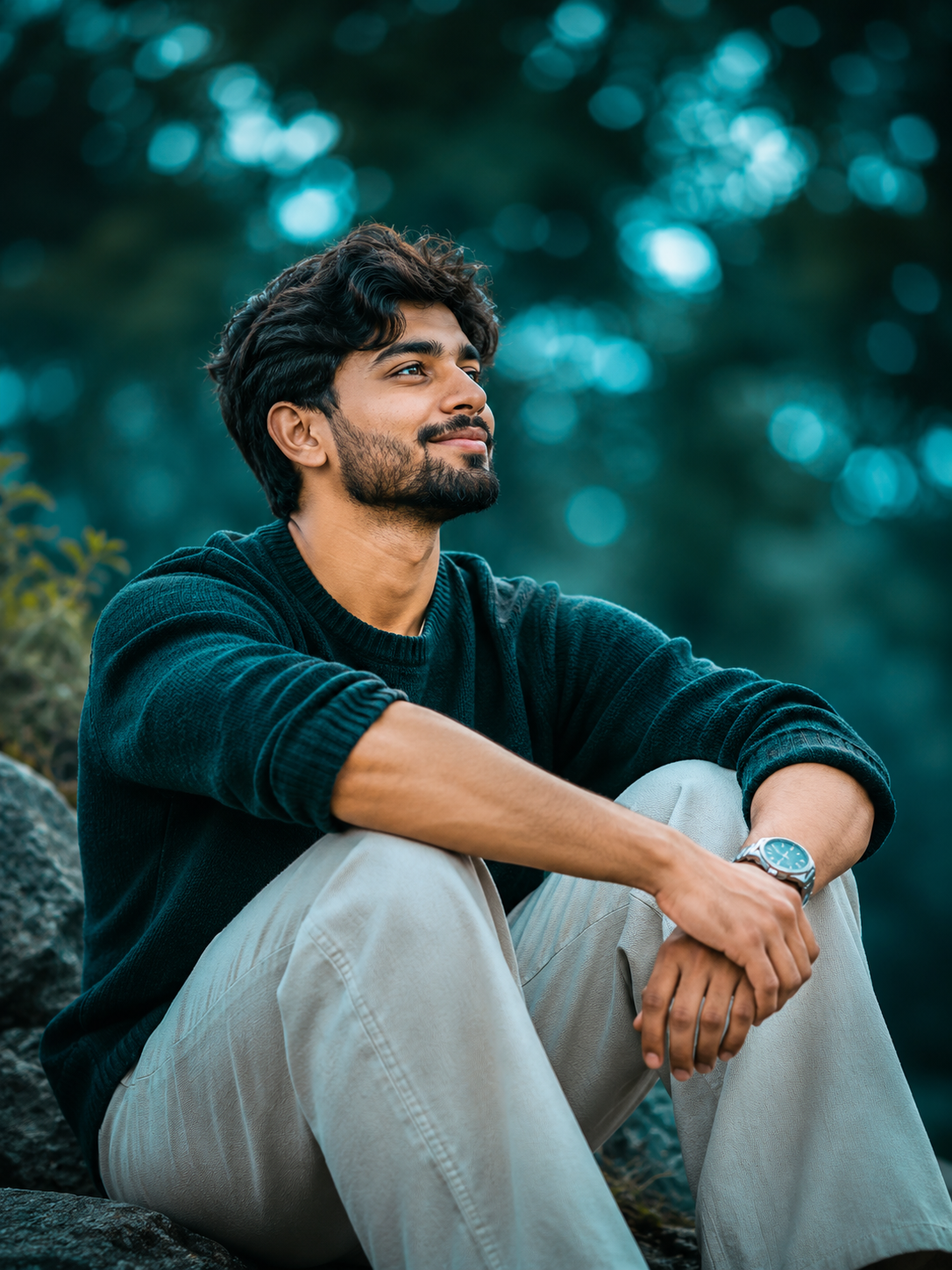
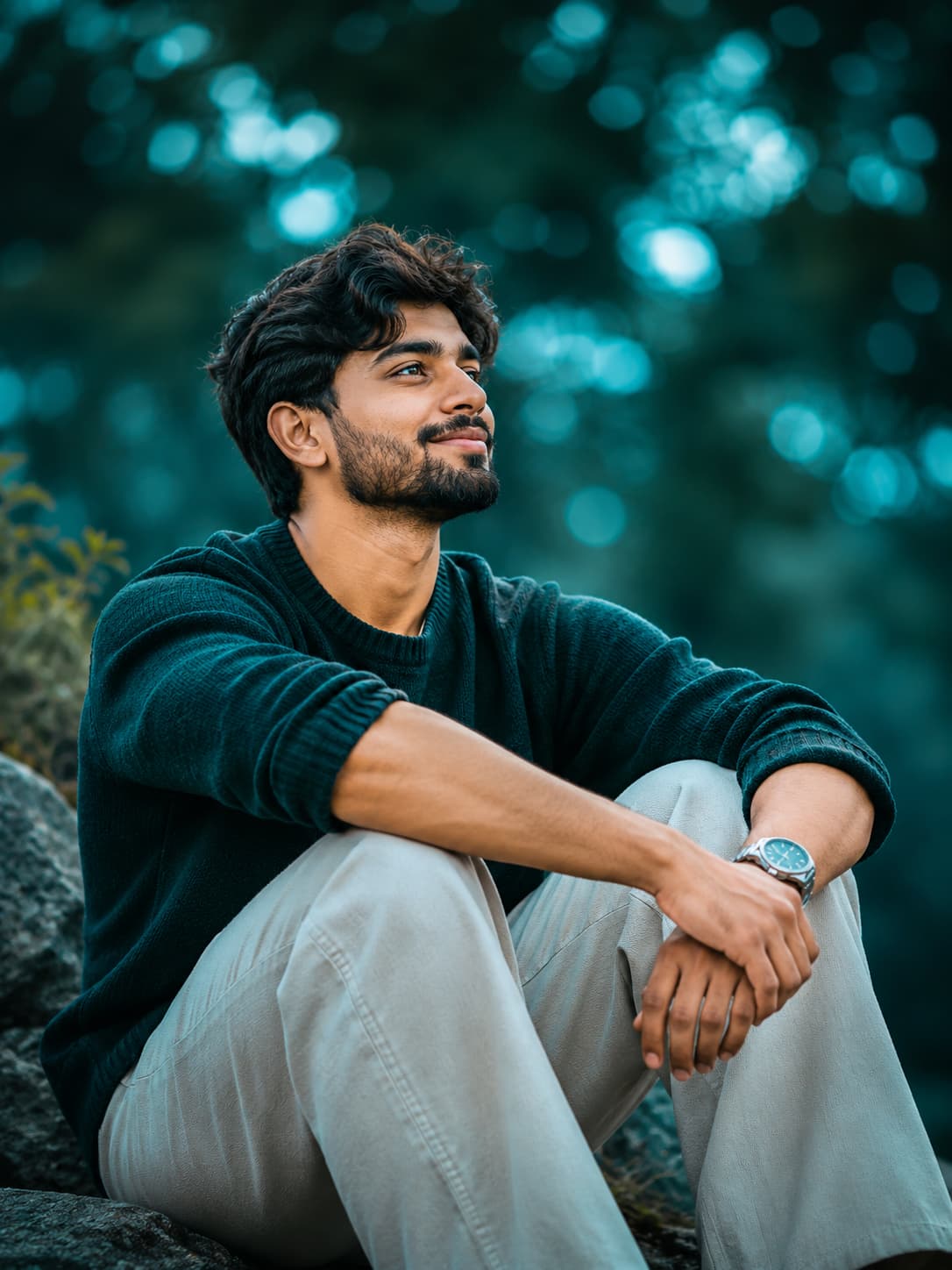
Teal blue photo editing prompt for ChatGPT adds cool cinematic tones and glowing bokeh while keeping the subject sharp and the original scene unchanged.
How to use this prompt
- Open ChatGPT and start a new conversation.
- Upload the original photo you want to edit.
- Copy the complete prompt template from PromptZen and paste it into ChatGPT.
- Keep the default teal-blue colour settings or customize the shadow, highlight and atmosphere colours.
- Ask ChatGPT to edit your uploaded photo using the prompt. Keep the original subject, face, clothes, pose and objects unchanged.
- Check the result. The subject should remain sharp, while the background has smooth DSLR-style blur and glowing circular bokeh lights.
Tip: Experiment with darker navy-blue shadows or brighter cyan-blue highlights for different cinematic photo styles.
Customize Parameters
Fill in the fields below to customize your prompt
Live Compiled Prompt447 chars
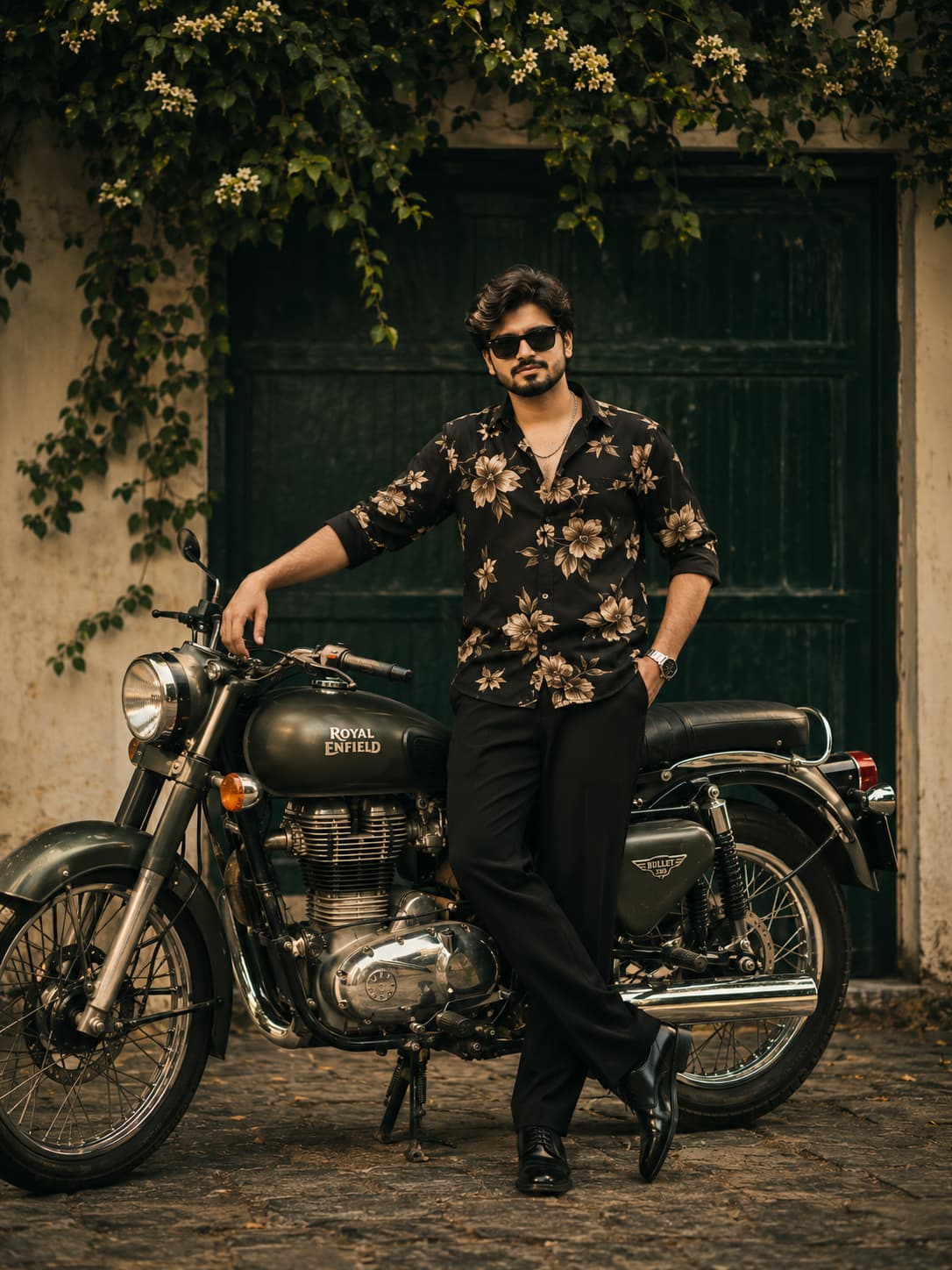
Apply a strong cinematic teal-blue color grade: dark deep teal shadows, rich cyan-blue highlights, moody dark green tones, reduced exposure, high contrast and cool blue atmosphere.
Add smooth DSLR background bokeh blur with glowing circular light effects. Keep the subject sharp. Preserve original face, pose, clothes, body and all objects. No scene changes, only colour grading and background blur.
Ultra-realistic DSLR photography, no AI look.
Related Prompts
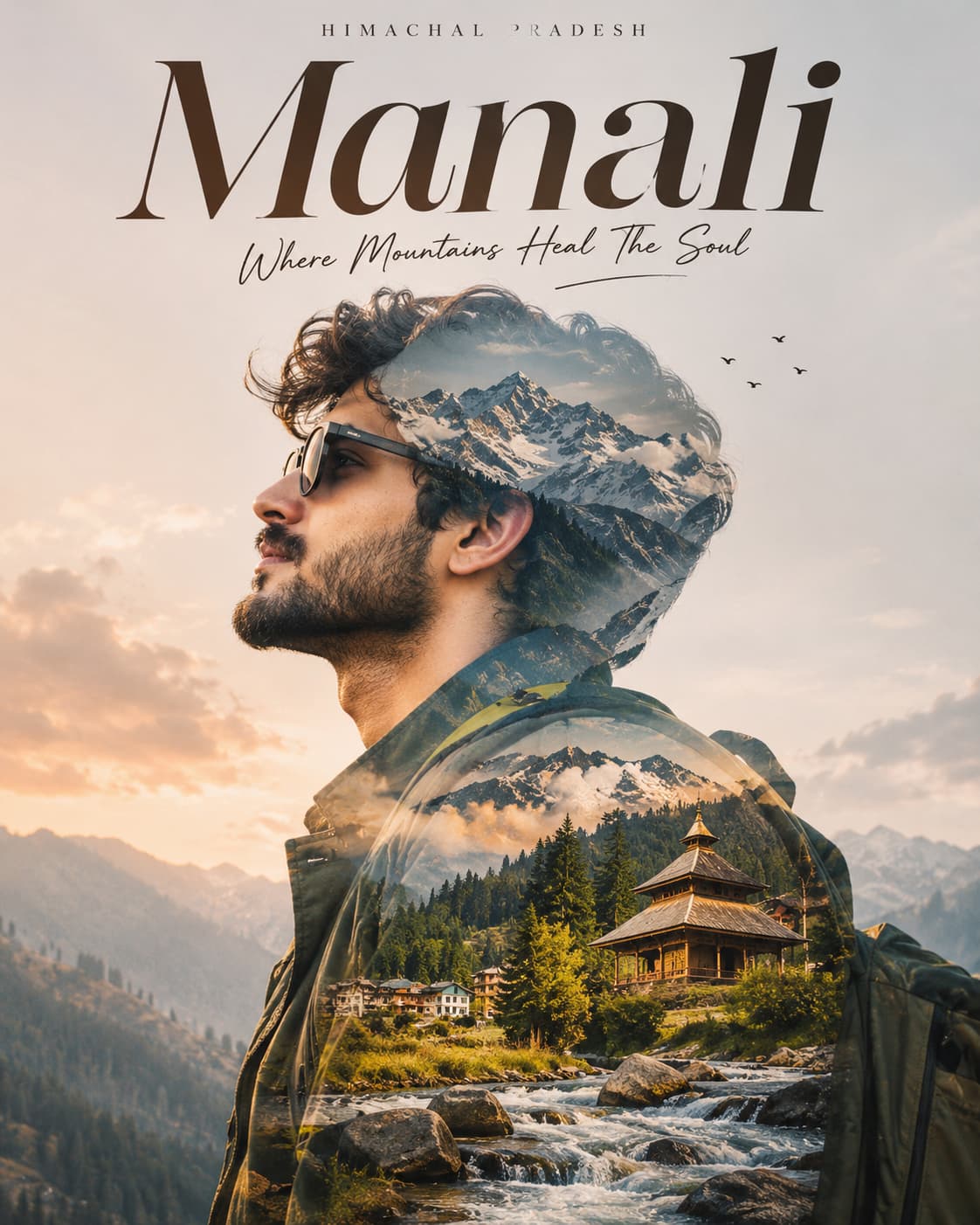
Discover more ChatGPT prompt templates with output previews and customizable fields.